When your booking system (for example Clinic Membership) sends a patient or appointment, Documenti decides whether that person already exists. Matching confidence is a percentage of the shared evidence two records agree on, not points out of a fixed rubric.
Tip
Patient Matching in the sidebar shows a badge with how many matches are waiting for your review.
What Documenti compares
You choose which details count in Organisation Settings → Patient matching. Each detail carries a percentage weight (split evenly by default, adjustable per detail). Details can include name, email, phone, date of birth, gender, and VIP status.
When records link automatically
- Documenti scores the inbound record against existing patients.
- If confidence reaches your Match threshold, and nothing blocks the link, the records join automatically.
- If two patients are both close matches, Documenti always sends the case to Patient Matching for a human decision.
Note
A conflicting email address or date of birth blocks an automatic link. A record that matches only on names never links automatically.
When nothing matches
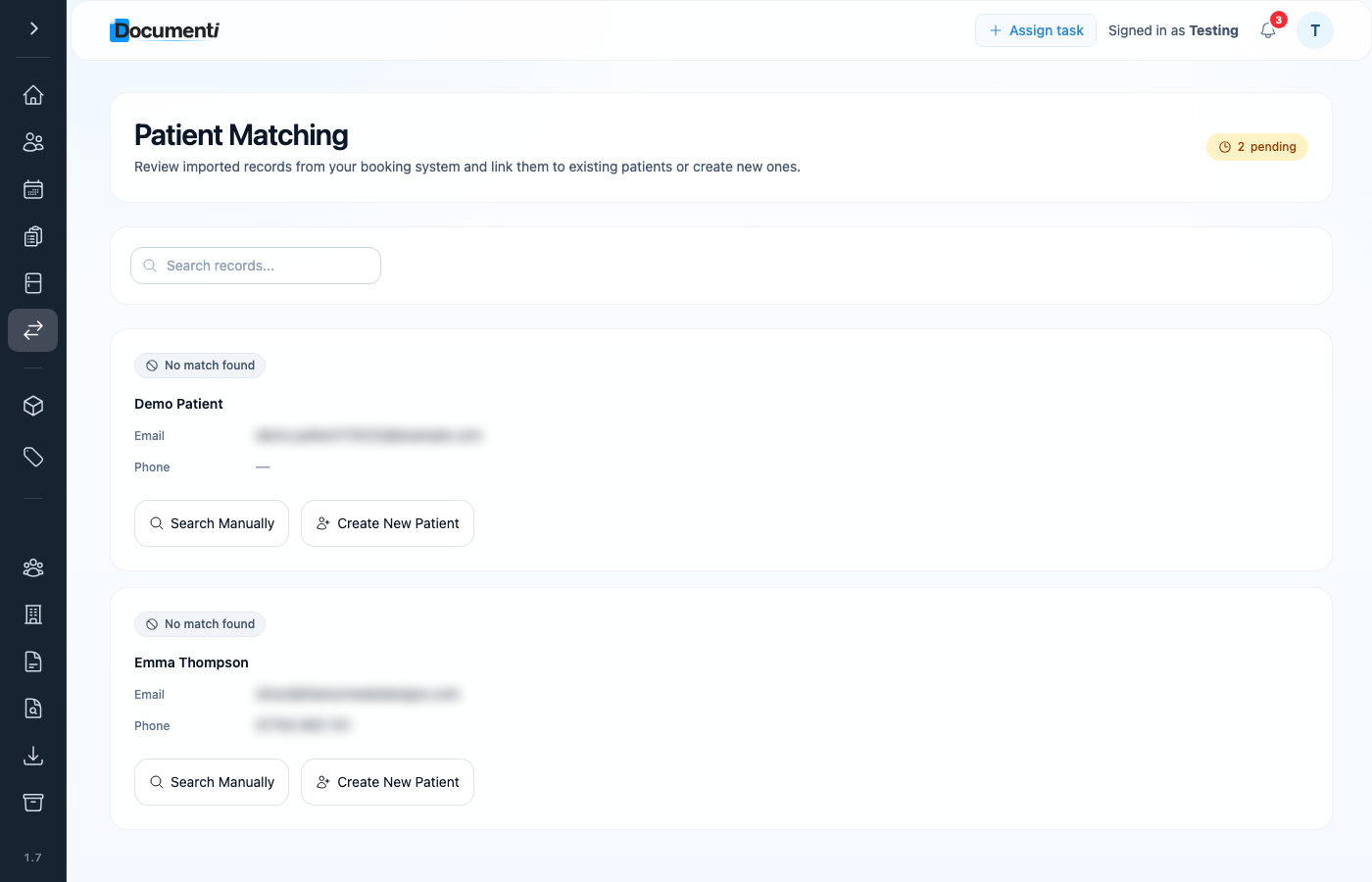
- Open Patient Matching to review the case: each row shows a per-field breakdown of why it matched or did not.
- Link manually, search for an existing patient, or create a new Documenti patient.
- New patients can be created automatically when the booking-system record matches nobody at all (and, if you enable it, only when that record has an upcoming appointment).
Note
Matching is not instant. Allow about a minute after a new booking or patient update before expecting them on the daily list.
If something looks wrong
- Wrong patient linked: check for shared family emails or phones, and review ownership rules in Patient matching settings.
- Patient stuck in Patient Matching: confidence may be below the threshold, or email/DOB may conflict.
- Duplicates: often caused by different emails for the same person; align contact details in the booking system first.