Consent forms, medical questionnaires, and BDDQ screens live in Documenti. The form content stays confidential in Documenti; when it is time to email a patient, Documenti tells Clinic Membership to send a branded link using your clinic sender.
Note
Draft forms are invisible to procedures and automation. Always open View to check the patient-facing form, then Publish when you are happy with the wording.
Browse templates or start from blank
- Sign in at app.documenti.co.uk and open Forms.
- Click to add a new form — choose Start from blank or Browse templates.
- Templates include common aesthetics consents and medical history layouts you can adapt.
- Edit sections, questions, and legal wording to match your clinic.
- Save — the form stays in Draft until you publish it.
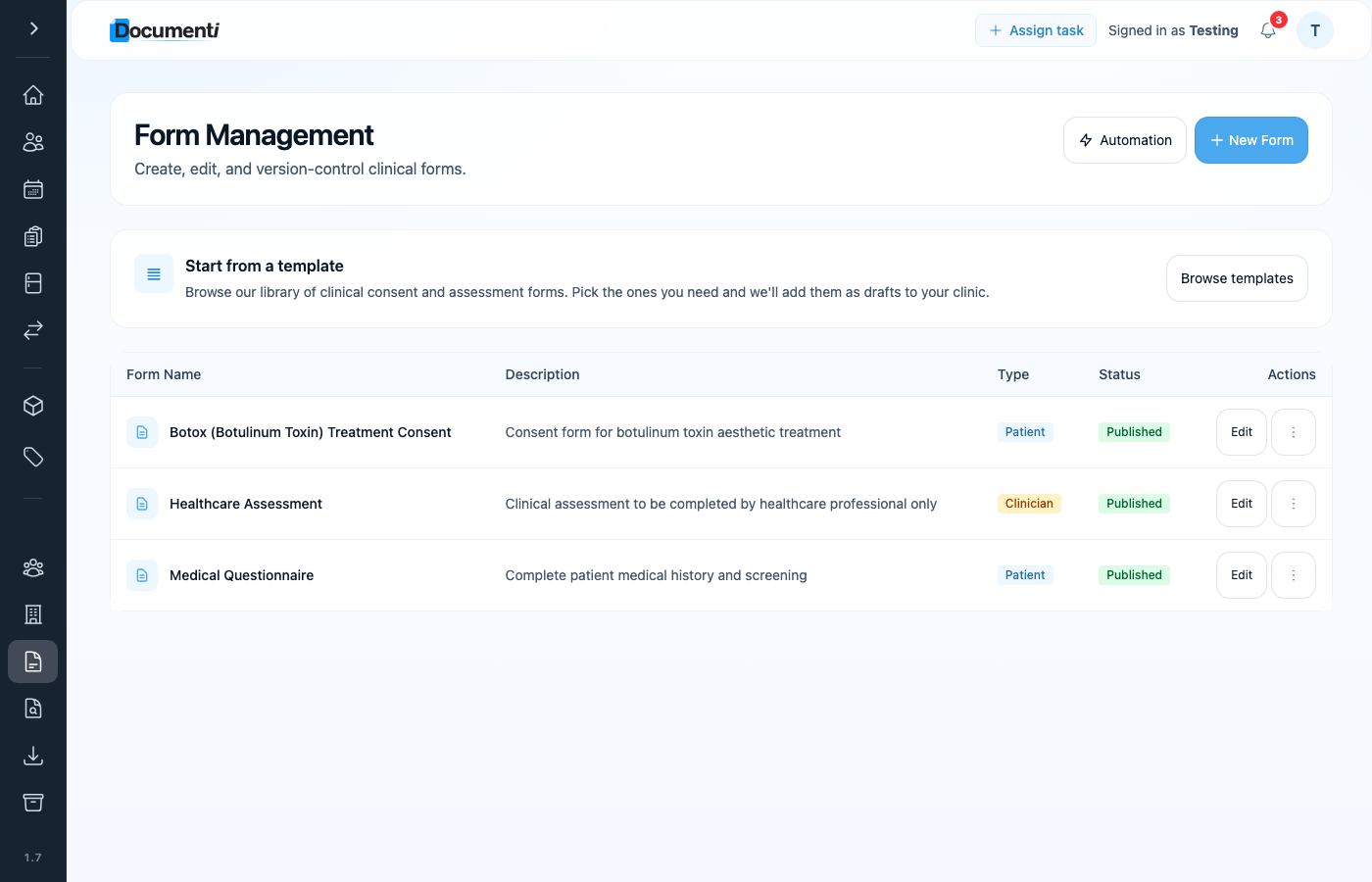
View and publish (required)
- Open the form from your forms list.
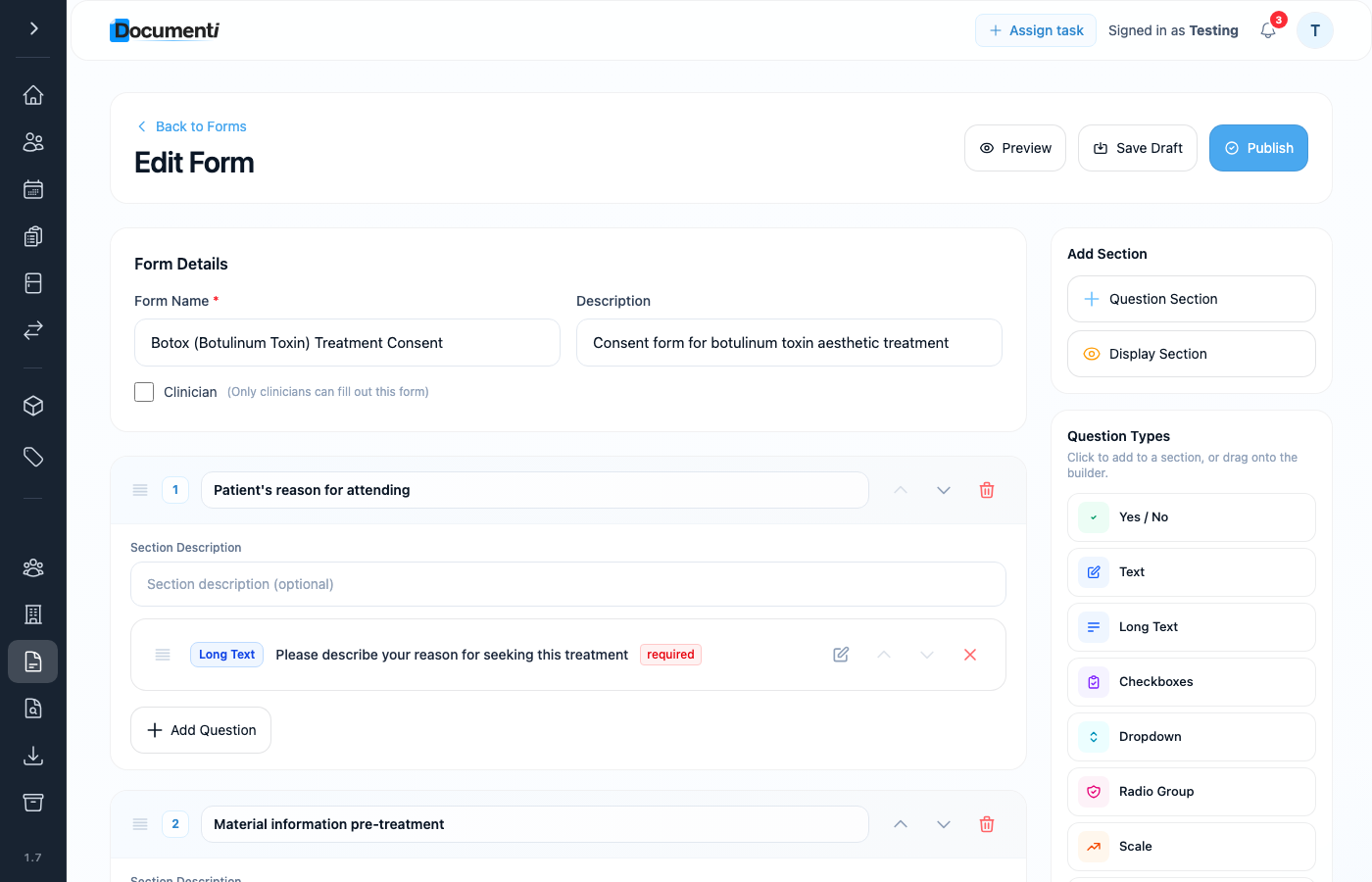
- Click View (or preview) to see exactly what the patient will complete.
- Check layout, signature blocks, and clinic-specific wording.
- Click Publish — only published forms can be linked to procedures or used in automation.
Form automation — send before treatment
Use Automation at the top of the Forms area to set rules that email patients before their appointment — for example a medical questionnaire, BDDQ, or consent that must be completed in advance. Documenti stores the form and the rules; Clinic Membership sends the email when the rule matches a booked patient.
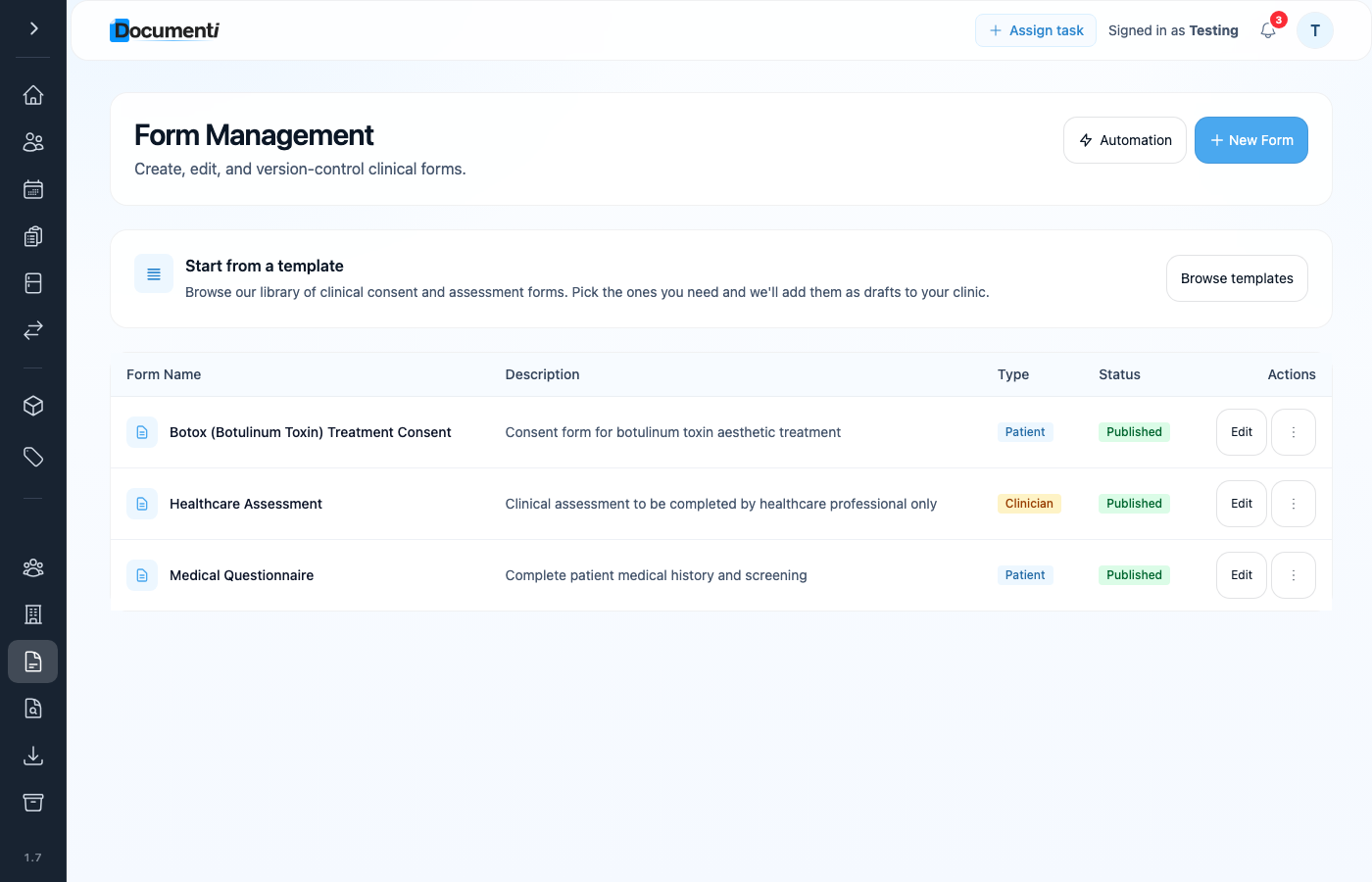
- Open Forms from the main menu.
- Click Automation at the top of the page.
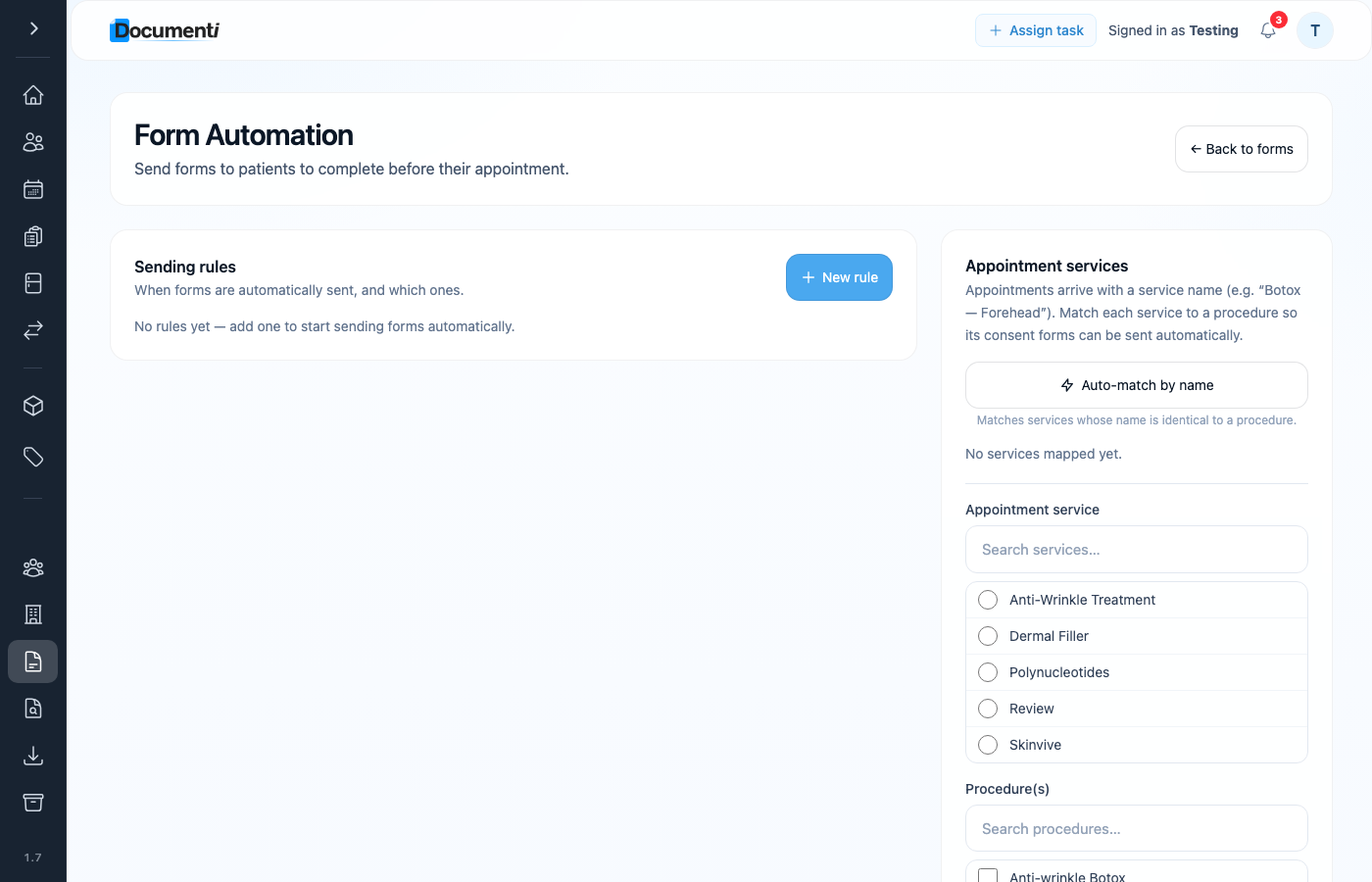
Sending rules
- On the Automation page, click New rule under Sending rules.
- Choose the published form and when it should send (for example X days before appointment, or when a specific procedure is booked).
- Save the rule. Patients who match receive a secure link by email from your clinic.
- Completed forms stay in Documenti; Clinic Membership does not store the clinical answers.
Tip
Configure your email sender in Clinic Membership first (Settings → Communications) so automated form emails come from your clinic address.