Snippets speed up notes during treatments and reviews. Create phrases you type often, then insert them with one click instead of rewriting the same aftercare or observation text.
Insert a snippet while writing a note
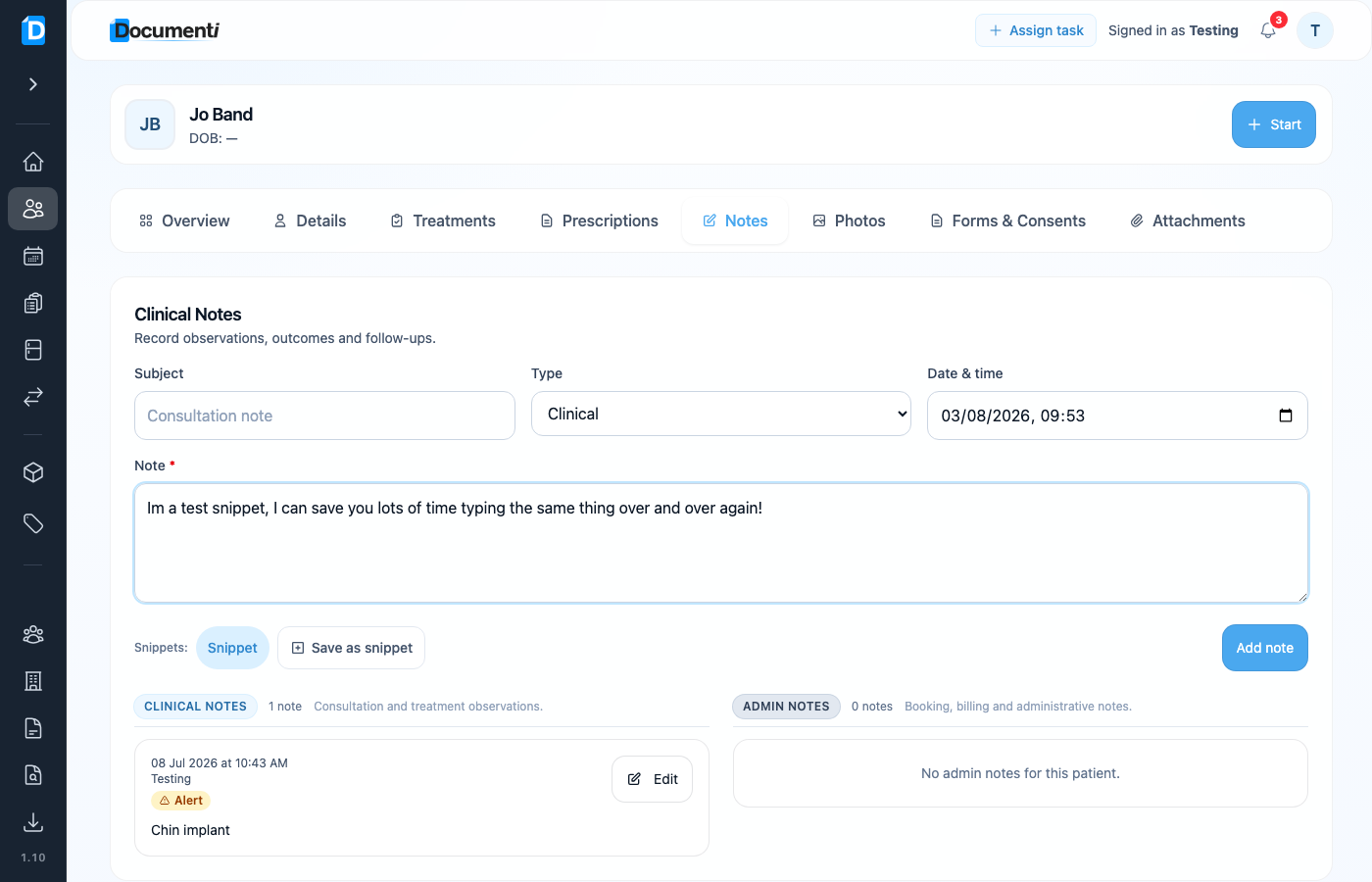
- Open the patient → Notes.
- Start a note in the text box.
- Use Snippet (next to Snippets:) to pick a saved phrase — or Save as snippet to keep the text you just wrote.
Manage your snippets in Settings
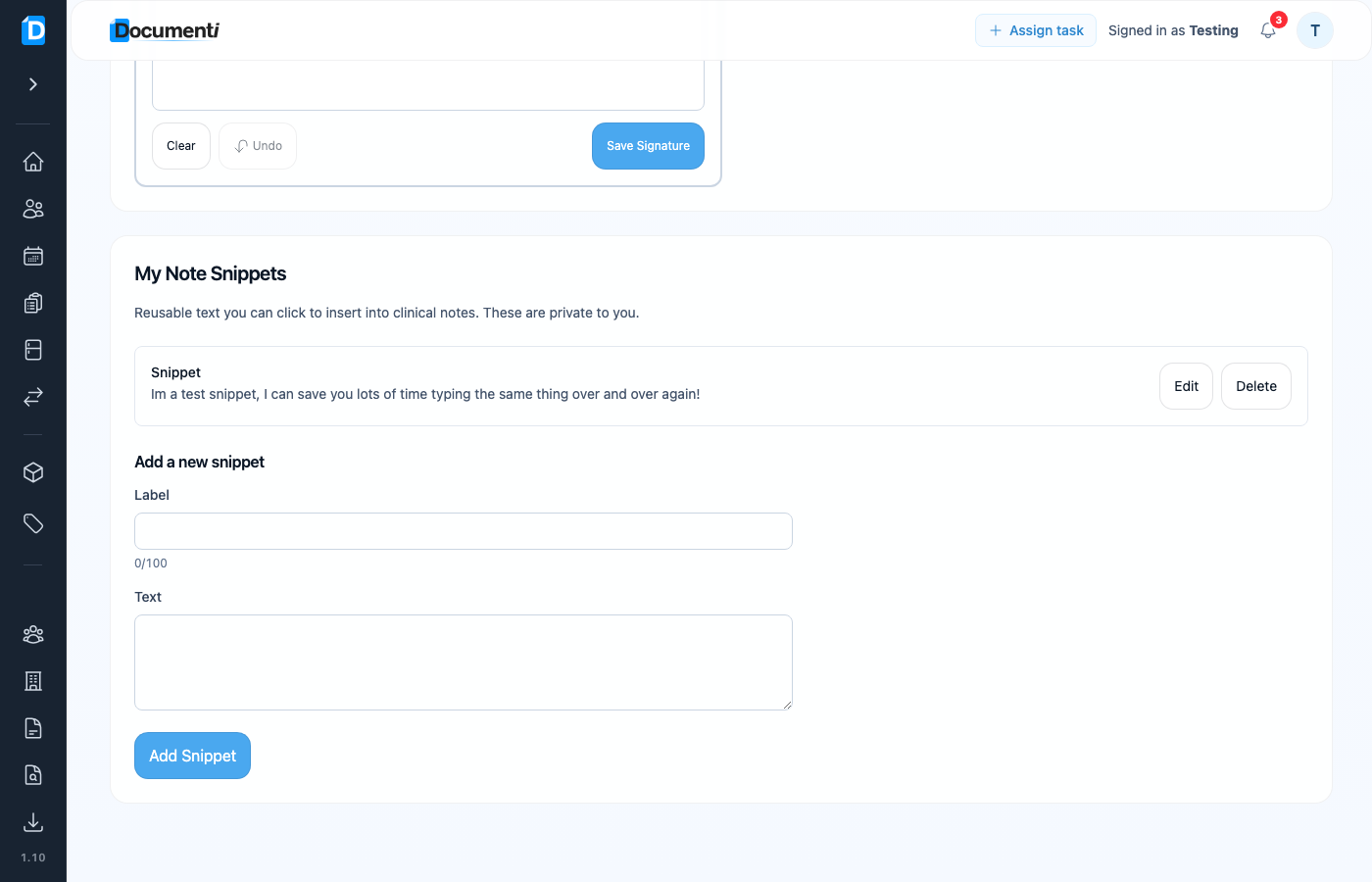
- Open Settings from your account menu.
- Scroll to My Note Snippets.
- Under Add a new snippet, enter a Label and Text, then Add Snippet.
- Edit or Delete existing snippets from the list above.
Show clinic shared snippets
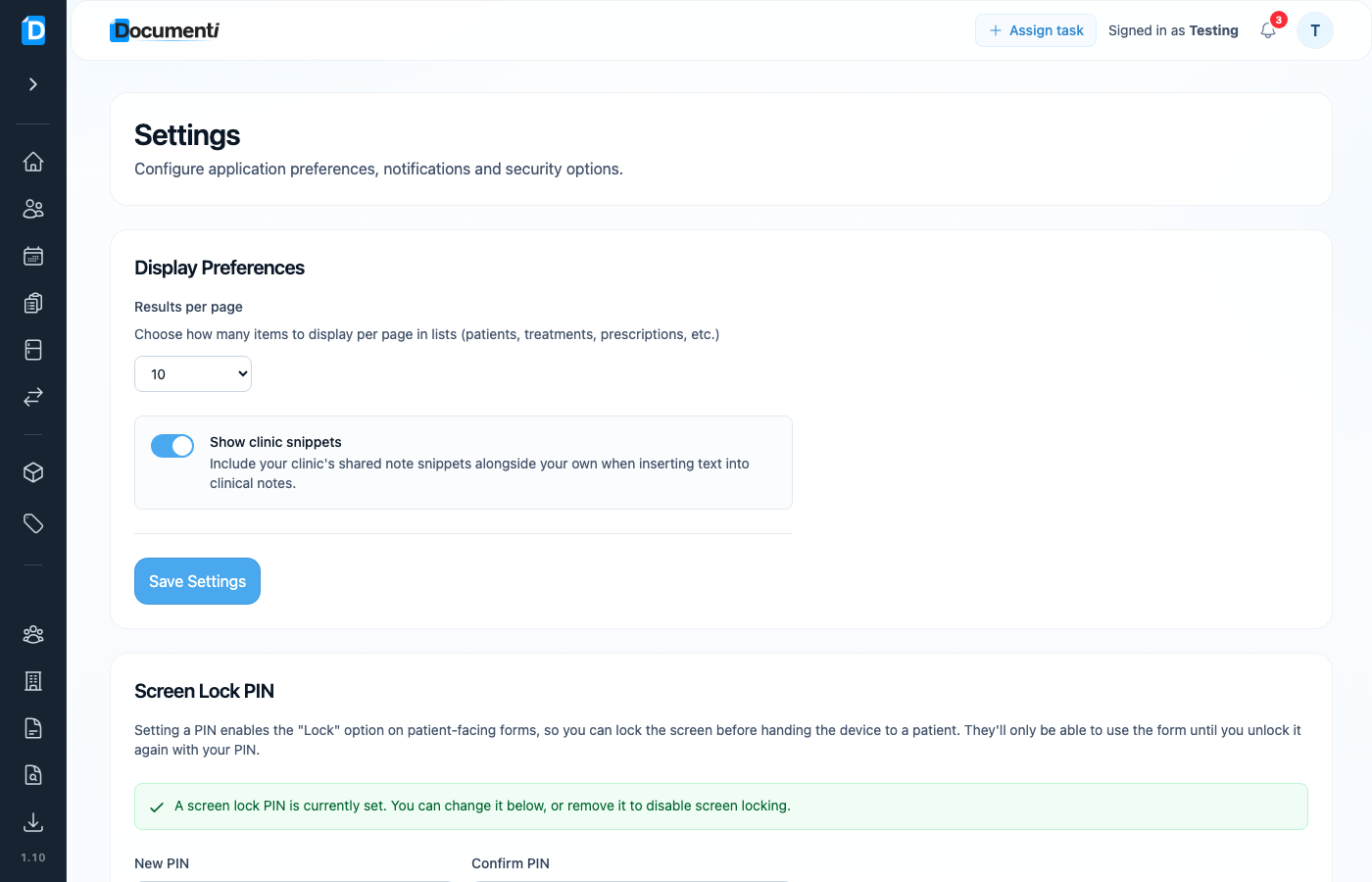
- In Settings, open Display Preferences.
- Turn on Show clinic snippets.
- Save Settings — shared clinic phrases then appear alongside your private ones when you insert a snippet.
Tip
Snippets are especially useful at review appointments when you repeat similar outcome and aftercare wording.