Treatment File export builds a patient-facing PDF of a single visit. You choose exactly which parts to include, then download the file yourself or email the patient a secure link. Practitioner clinical notes are never included — the cover page says so plainly.
Open the export
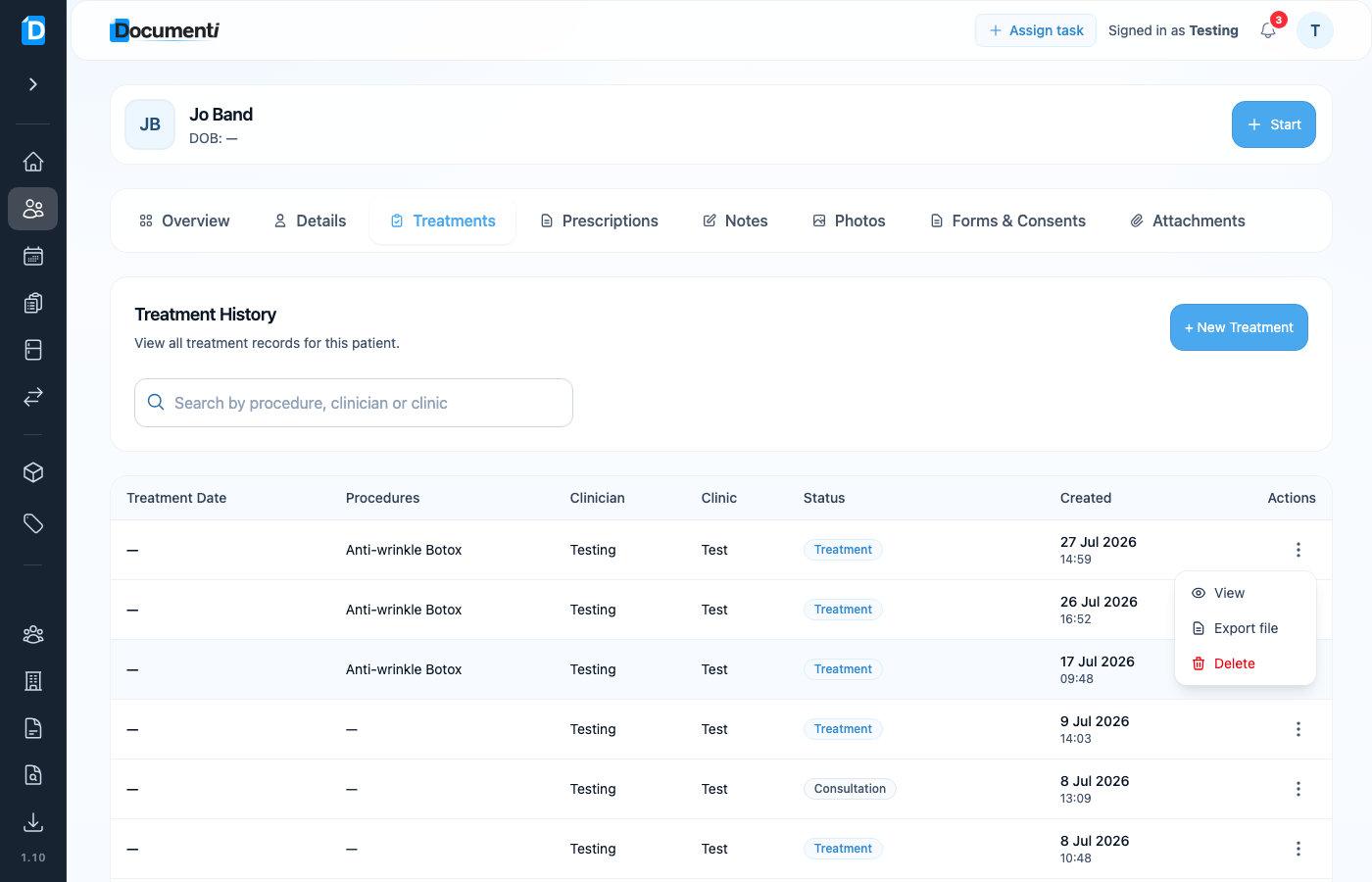
- Open the patient → Treatments.
- On the visit row, open the actions menu (⋯).
- Choose Export file.
Choose sections to include
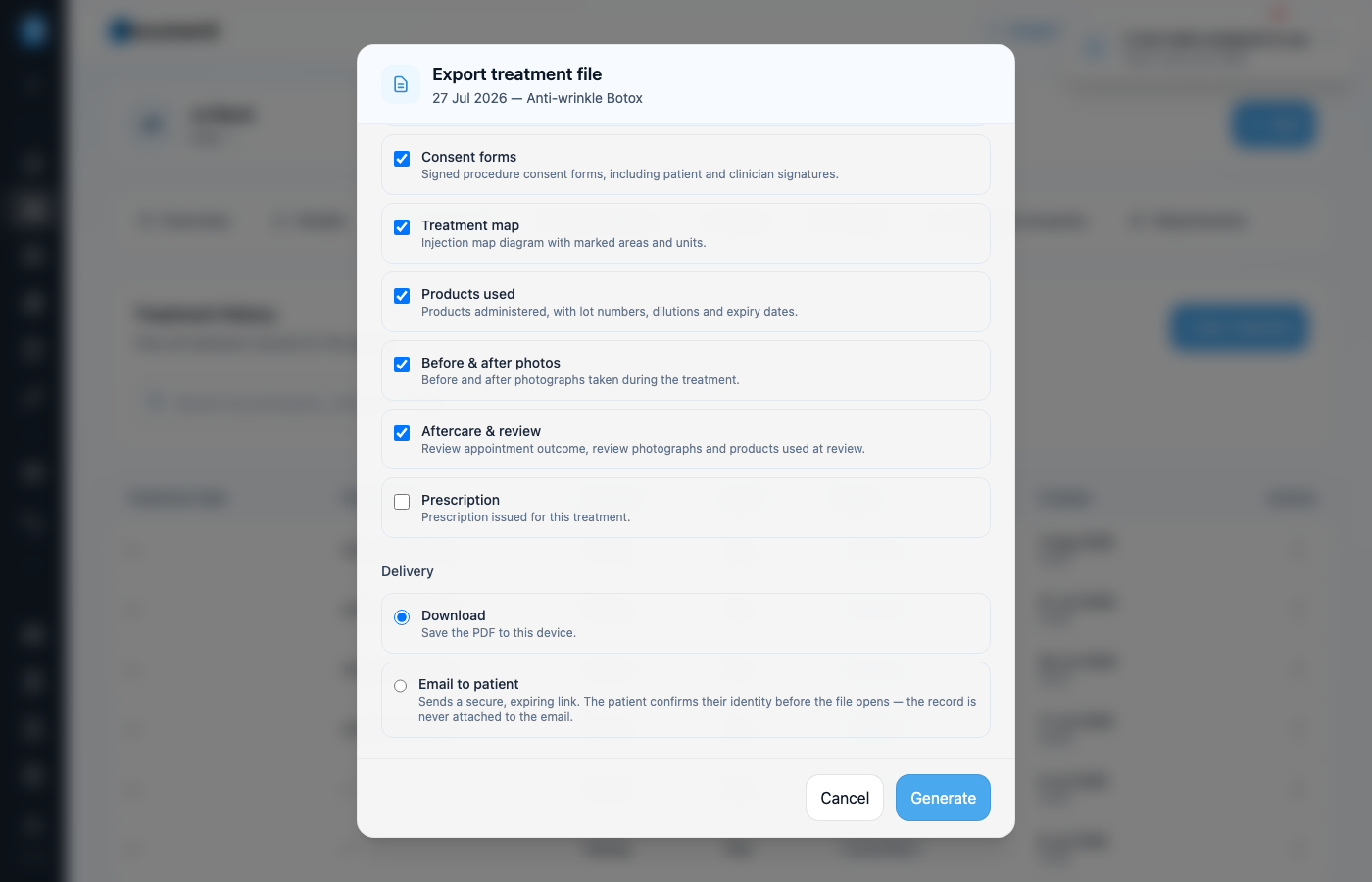
Tick only what you want the patient to receive. Available sections include:
- Treatment record — patient details, dates, clinician, clinic, and procedures
- Intake forms — medical questionnaire, healthcare assessment, and other intake forms
- Consent forms — signed procedure consents, including signatures
- Treatment map — injection map with marked areas and units
- Products used — products with lot numbers, dilutions, and expiry dates
- Before & after photos — photographs from the treatment
- Aftercare & review — review outcome, review photos, and products used at review
- Prescription — if a prescription was issued for this treatment
Note
Practitioner clinical notes are never part of an exported file. Photos in the PDF are grouped into clearly labelled Before, After, and Review sets, each showing how many photographs it holds.
Download or email to a patient
- Under Delivery, choose Download (save the PDF to this device) or Email to patient.
- Choose Generate.
- If you chose Download, wait until the file is ready, then Download PDF.
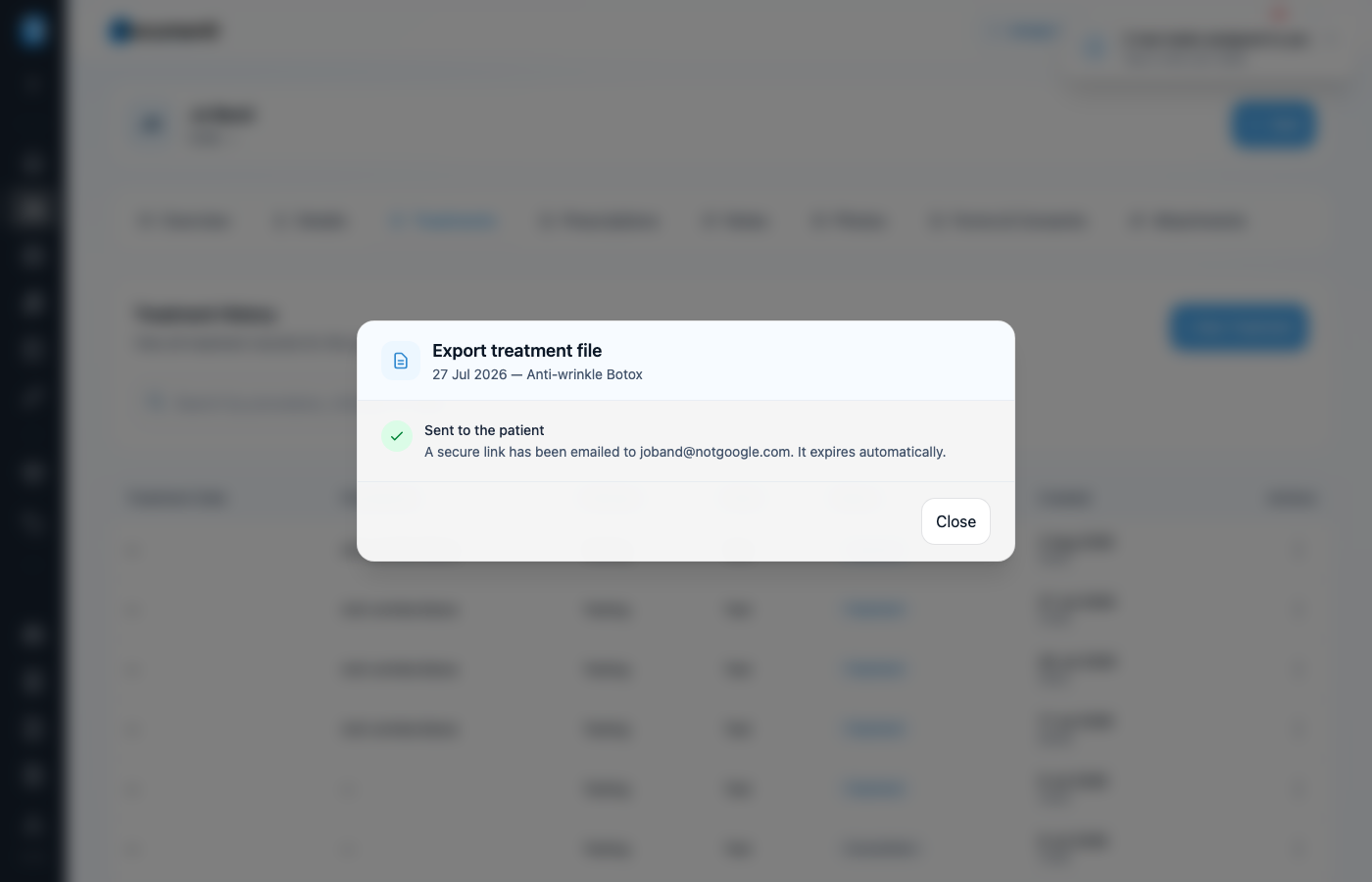
- If you chose Email to patient, Documenti emails a secure link — the PDF is never attached to the email.
How the patient email link works
- The email carries a secure link, not an attachment.
- The patient confirms their date of birth before the file opens.
- The link expires after seven days.
- You can revoke the link at any time if it went to the wrong address.