The Treatment phase is where you record what you actually delivered: before photos, procedure consents, products used, and the visual treatment map. Consultation must be complete so procedures (and any linked consents) are already selected.
Open the treatment phase
- From the patient’s Overview, choose Continue treatment: or open the Treatment card on an in-progress consultation.
- Confirm the phase banner shows Treatment: Execution & Recording as In Progress.
Work through the treatment steps
- Before Photos: upload or capture photos before you treat.
- Treatment Consent: complete any consents required by the procedures chosen in consultation.
- Products Used: add each product, batch/lot, and expiry.
- Treatment Plan: open View / Edit to place injection points on the map.
- Treatment Notes: add notes (saved immediately; they cannot be edited later).
Tip
Retail POS stock lives in Clinic Membership. Documenti products are professional injectables configured under Products: set those up before treatment day if the catalogue looks empty.
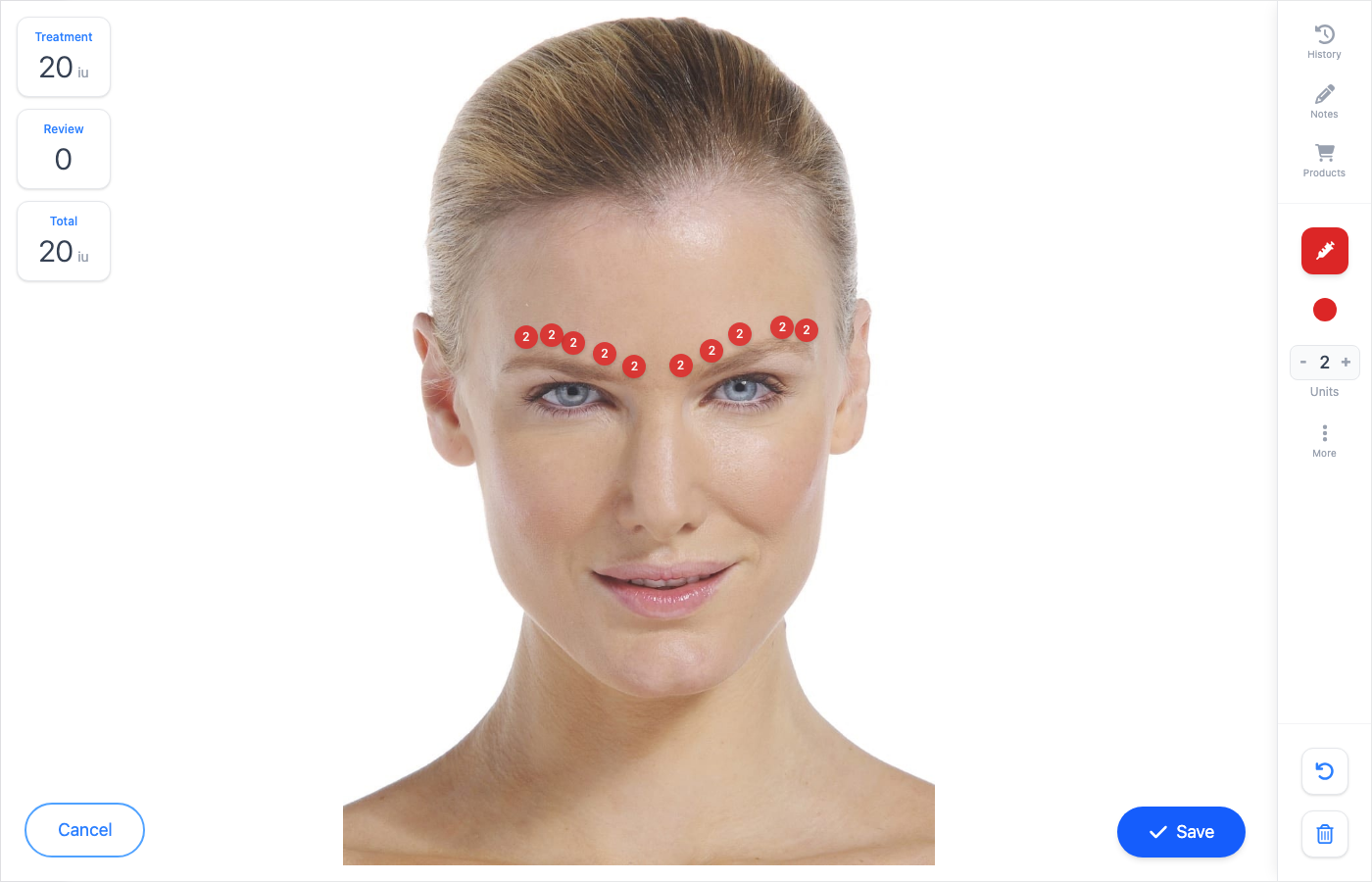
Use the treatment map
- Click View / Edit on Treatment Plan.
- Choose the injection area (for example Forehead or Glabella).
- Set units with + / − on the right, then tap the face to place each point.
- For finer amounts, click the number in the sidebar and type a decimal (for example 0.5).
- Watch Treatment and Total (left) update as you add points.
- Save when the map matches what you delivered.
Tip
Treatment maps support decimal units. Click the unit value in the sidebar to type an exact amount (dilutions take two decimal places). Markers dropped close together are nudged apart so every dot stays clickable.
Complete treatment
When photos, consents, products, and the map are done, complete the treatment phase. Review unlocks for outcome and aftercare, either later the same day or at a follow-up appointment.